


Title and Content Boxes
Title and Content Boxes are the most noticeable areas on the Add New Post screen (see the screenshot below).

Yours might look slightly different depending on whether you are using the visual or the text editor.
You can switch between visual and text editor while writing a post, but we do not recommend switching as this could mess up your post’s formatting.
Visual Editor is a beginner friendly text editor with formatting buttons and a nice visual layout for content area. On the other hand, text editor is a plain text editor where you can actually see the HTML or write your own.
The first text area on the top is where you add the post’s title. If you are using SEO Friendly URL structure, then WordPress will auto generate post URL based on the title. You can edit the URL by clicking on the edit button.
The content area is where you will write your post. You can use the formatting options from the toolbar or use one of the many keyboard shortcuts available which will speed up your writing process.
In the footer area of the content editor, WordPress will show you the word count for your post.
As you write, WordPress will automatically save a draft of your post. This autosave is stored in your WordPress database temporarily.
As soon as you save your draft or write more content, WordPress cleans up your autosave temporary draft and replaces it with a new one. This process ensures that you do not lose your content due to internet connection or hardware failure. See our guide on how to undo changes in WordPress with post revisions.
The post editor shows your current draft and autosave status in the footer next to word count.
Add Images and Media
Between the title and content fields, there is a large Add Media button. You will need to click on it when you want to upload an image or any other media to your WordPress post. This will launch the media uploader in a popup window.
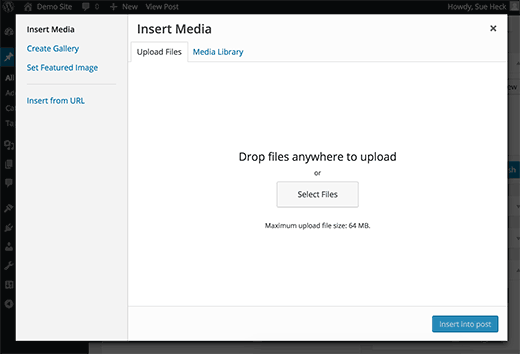
Simply click on the select files button to upload images or any other media to your WordPress site. You can also create image galleries and audio playlists from uploaded files.
WordPress comes with some basic image editing tools.
Publishing Options
The WordPress post edit screen is divided into two columns. The column on your left contains the post title and content editor. On your right hand side, you have different meta boxes to configure post settings.
The top most meta box in this column is labeled Publish. This is where all the publishing options for your posts are managed.

1. Save Draft button stores a draft of the post or page that you are working on. WordPress also auto-saves your posts as you write them.
2. Preview button shows a live preview of your post. You can use it to see how your post will look after publishing.
3. Status allows you to set a status for your post. WordPress automatically handles post status for drafts and published posts. Unless you are using a plugin to add custom statuses, you don’t need to worry about this option.
4. Click on the Edit link next to visibility to expand it. The first option under visibility will allow you to make your post sticky on front-page. Sticky posts in WordPress are like featured content that are displayed on top of all other posts.
5. The next option allows you to password protect a post in WordPress.
6. The third option under visibility is labeled private. This allows you to privately publish a post on your WordPress site. The private posts will be visible to users who have the editing privileges on your site.
7. Click on the edit link next to Publish, and WordPress will display the time and date options. You can use this option to schedule posts or create back dated post in WordPress.
8. Move to trash allows you to delete a WordPress post. Deleted posts live under trash, and you can restore them if you need to for up to 30 days.
9. Finally, the publish button makes your WordPress post public. Remember if you scheduled a post, then it will appear on your site on the scheduled date and time.
Adding Categories and Tags
You can sort your posts into categories and tags. The categories and tags meta boxes usually appear in the right hand column, below the publish meta box.
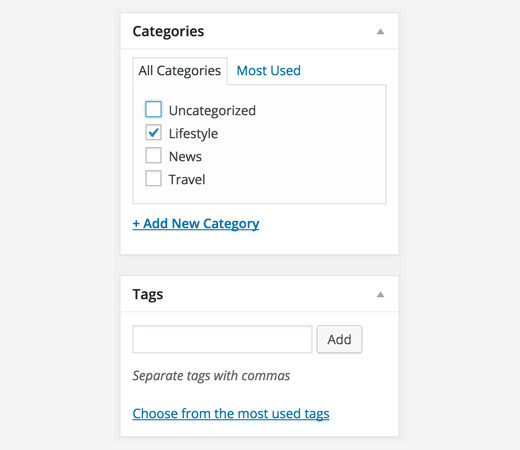
Categories and tags help you organize your content in a meaningful and browsable format. Not only your users can easily find your content, it also boosts your site’s SEO. See our guide on the difference between categories and tags and how to use them to sort your content.
Featured Image (Post Thumbnails)
Most WordPress themes support featured images or post thumbnails for articles. Usually it is the last box in right hand column on the post edit screen.
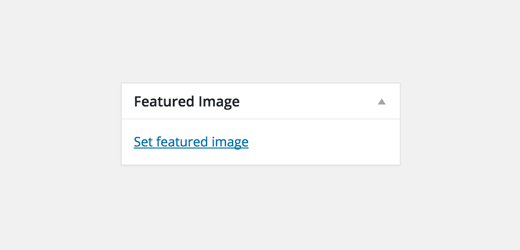
Simply click on set featured image link, and it will bring up the media uploader popup. You can select an image from your previous uploads or upload a new image from your computer. For more detailed instructions, see our guide on how to add featured image or post thumbnails in WordPress.
Screen Options
Some of the options on the post edit screen are hidden by default to present a cleaner and simpler editing experience. These options are not commonly used by beginners. However, you may need them later.
Simply click on the Screen Options button on the top right corner of the page. This will show a menu with checkboxes next to option names.

As you can see some of the options will already be checked. For the others, you can display them by clicking on the checkbox next to an option name, and it will appear on your post edit page.
Let’s take a look at some of these options and what they do.
Excerpts
Checking this box adds a meta box below your content editor. You can use this box to add a short summary or excerpt for your post.

Ideally, you should display summary or excerpt for your posts on your site’s front-page and archives. Full content should only be displayed on the post’s single page. Learn more about this in our guide full post vs summary (excerpt) in your WordPress archive pages.
Send Trackbacks
Send Trackbacks option allows you to notify other blog owners that you have linked to their content. Take a look at our guide on trackbacks and pingbacks in WordPress to learn more.
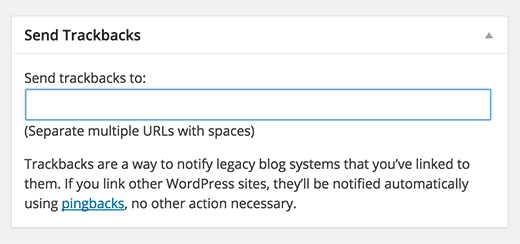
If the other blog owner is running WordPress, then you don’t need to send them trackbacks. Your WordPress site will automatically send them a ping when you publish the post.
Trackback feature is misused by spammers so much that many site owners simply disable them. We have an article on dealing with trackback spam in WordPress.
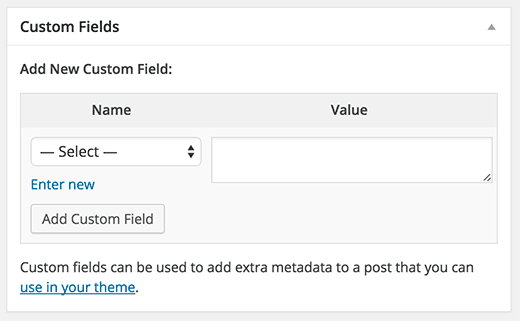
Custom Fields
This option will display a user interface for custom fields below your post editor. You can use it to manually enter custom information in your posts. See our WordPress custom fields 101 guide for beginners to learn more.
Discussion
While comments are a great way to engage your audience, sometimes you may not want to have comments on a specific post or a page.
The discussion option displays a meta box below post editor to turn on/off comments and pingbacks for your post.
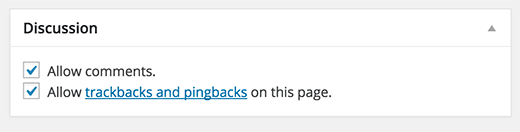
Since pages are supposed to be like static pages, most users want to turn off comments on them. You can do so by editing each page, or you can see this tutorial to turn off/disable comments on WordPress pages.
Once your WordPress site gets some reputation, you will start getting an increase of comment spam. Instead of turning off comments, you may want to try these tips and tools to combat comment spam in WordPress.
Slug
A slug is a cleaner title that can be used in URLs.
http://example.com/2015/07/this-is-post-slug
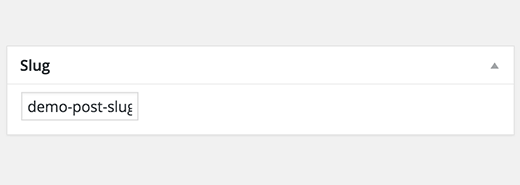
WordPress automatically generates a post slug and displays it as the post URL just below the post title. You can edit the URL slug by clicking on the edit link below the post title.
You can also enable the slug option from the Screen Options and edit your post slug there.
Author
WordPress will automatically assign you as the post author when you create a post. However, sometimes you may want to show another user on your WordPress site as the author. Enabling the author checkbox allows you to do that from the post edit screen.

Options Added by WordPress Plugins
So far we have only explained the default WordPress post edit settings. Many WordPress plugins will also add their own settings panels on the post edit screen.
For example, Yoast WordPress SEO plugin adds its own settings panel.

credit: https://www.wpbeginner.com/beginners-guide/how-to-add-a-new-post-in-wordpress-and-utilize-all-the-features/


You actually make it seem so easy along with your presentation however I in finding this topic to be really
one thing which I believe I’d never understand.
It seems too complicated and very vast for me.
I’m having a look ahead to your subsequent put up, I’ll attempt to get the hold of it! http://www.mbet88vn.com
Hi! Someone in my Facebook group shared this website with us so
I came to check it out. I’m definitely enjoying the information. I’m bookmarking and
will be tweeting this to my followers! Exceptional blog and wonderful design and
style.
This info is priceless. Where can I find out more?
Very good site you have here but I was wanting to know
if you knew of any message boards that cover the same topics talked about
here? I’d really like to be a part of group where I can get suggestions from
other knowledgeable individuals that share the same interest.
If you have any suggestions, please let me know. Kudos! http://keo365.com/the-thao
Encore et toujours des chats sur Youtube.
It will do you good if you are for you to ask for an additional person’s aid.
Some consumers are really good at article writing as these
promote their skills properly. https://918kiss.bid/games/sky-777
This is a good tip particularly to those fresh to the
blogosphere. Short but very precise info… Thanks for sharing this one.
A must read article!
Hi! Do you know if they make any plugins to help with SEO?
I’m trying to get my blog to rank for some targeted keywords but I’m not seeing very good gains.
If you know of any please share. Kudos! http://www.viknadveri.com/modules/redir.php?url=http://www.mbet88vn.com
I’m truly enjoying the design and layout of your website.
It’s a very easy on the eyes which makes it much more enjoyable for me to come
here and visit more often. Did you hire out a designer to create your theme?
Great work!
Hello I am so excited I found your webpage, I really
found you by mistake, while I was browsing on Yahoo for something
else, Nonetheless I am here now and would just like to say thanks a lot for a incredible post
and a all round interesting blog (I also love the theme/design), I don’t have time to browse it all at the moment
but I have book-marked it and also included your RSS feeds, so
when I have time I will be back to read a great deal more, Please do keep up the great
job.
This is a really good tip especially to those fresh to the blogosphere.
Simple but very accurate information… Thanks for sharing this one.
A must read post!
Hi there! I just would like to offer you a big thumbs up for your
excellent info you have got right here on this post. I am coming back to your blog
for more soon.
Howdy just wanted to give you a quick heads up and let
you know a few of the pictures aren’t loading properly.
I’m not sure why but I think its a linking
issue. I’ve tried it in two different internet browsers
and both show the same results.
I’m amazed, I must say. Seldom do I encounter a blog that’s both
educative and engaging, and without a doubt, you have hit the nail
on the head. The problem is an issue that too few folks are speaking intelligently about.
Now i’m very happy I came across this in my search for something relating to this.
Good way of explaining, and pleasant piece of writing to obtain data about my presentation focus, which i am going to deliver in university.
I got this website from my friend who shared with me regarding this web page and at the moment this
time I am browsing this site and reading very informative posts here.
We’re a bunch of volunteers and starting a brand new
scheme in our community. Your web site provided us with useful info to work on.
You’ve done an impressive process and our entire community will likely be thankful to you.
Hi there mates, its wonderful article concerning tutoringand entirely defined, keep it up all the time.
Wow! In the end I got a weblog from where I can genuinely obtain valuable information concerning my study and knowledge.
Please check us —->> http://www.evil-page.com